 FastFreeSoftware
Unzipply
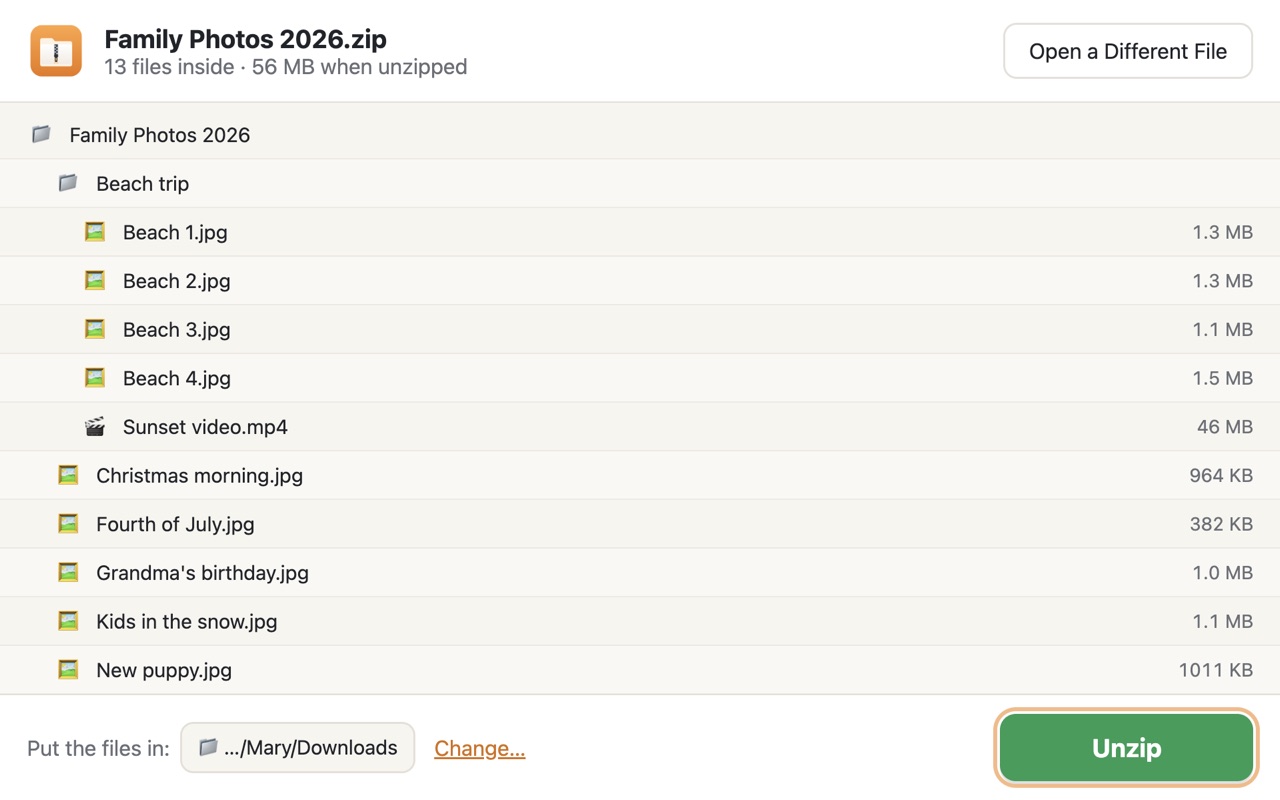
Unzipply opens zip files on Windows and Mac. Got a zip, RAR or 7z file in an email or a download? Drag it onto Unzipply, or just double-click it. You see every file inside before you start. Press the big green Unzip button and your files land in a new folder right next to the zip, ready to use. If the file has a password, Unzipply asks for it. It also opens TAR, GZ, ISO, CAB and most other compressed files.
Version 1.0.0
What's New
- First release
- Opens Zip, RAR, 7z, TAR, GZ, ISO, CAB and more
- Shows every file inside before you unzip
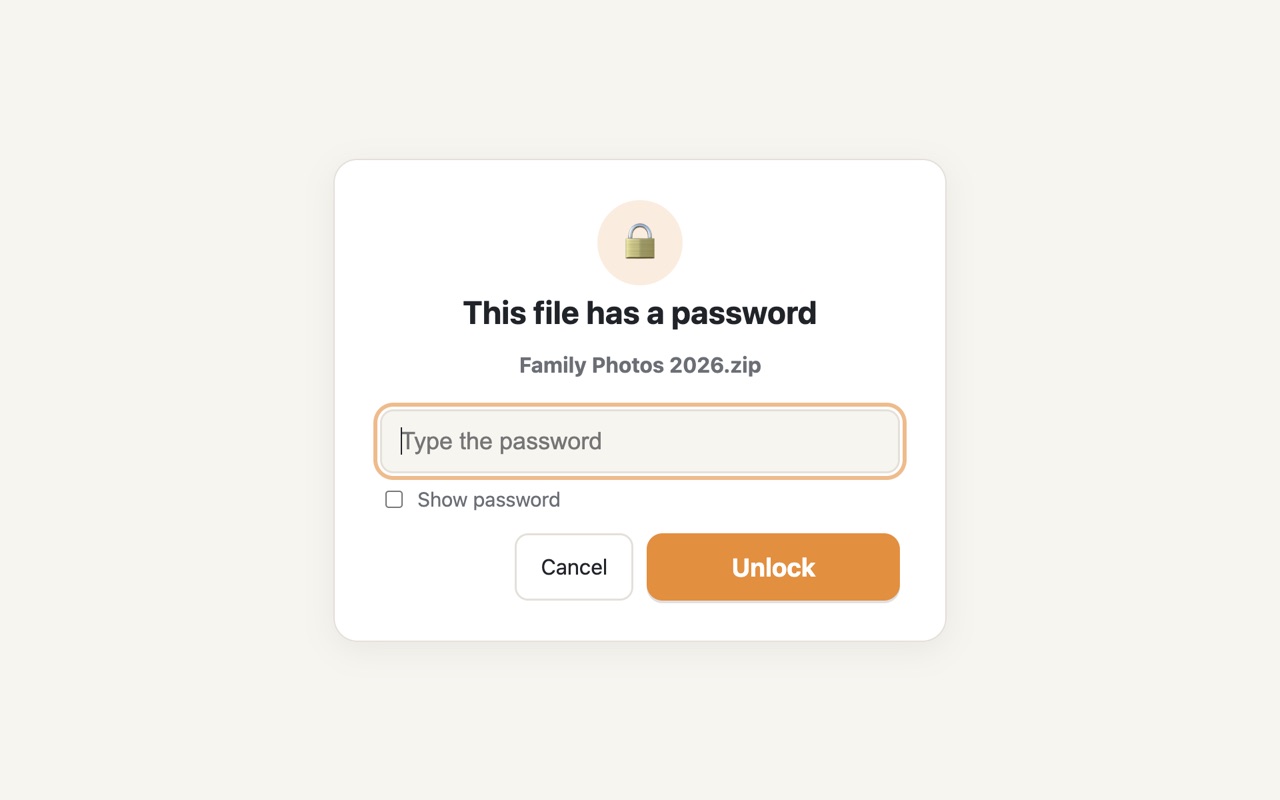
- Asks for the password on locked files
- Never overwrites your files and never makes a folder inside a folder
How to unzip a file
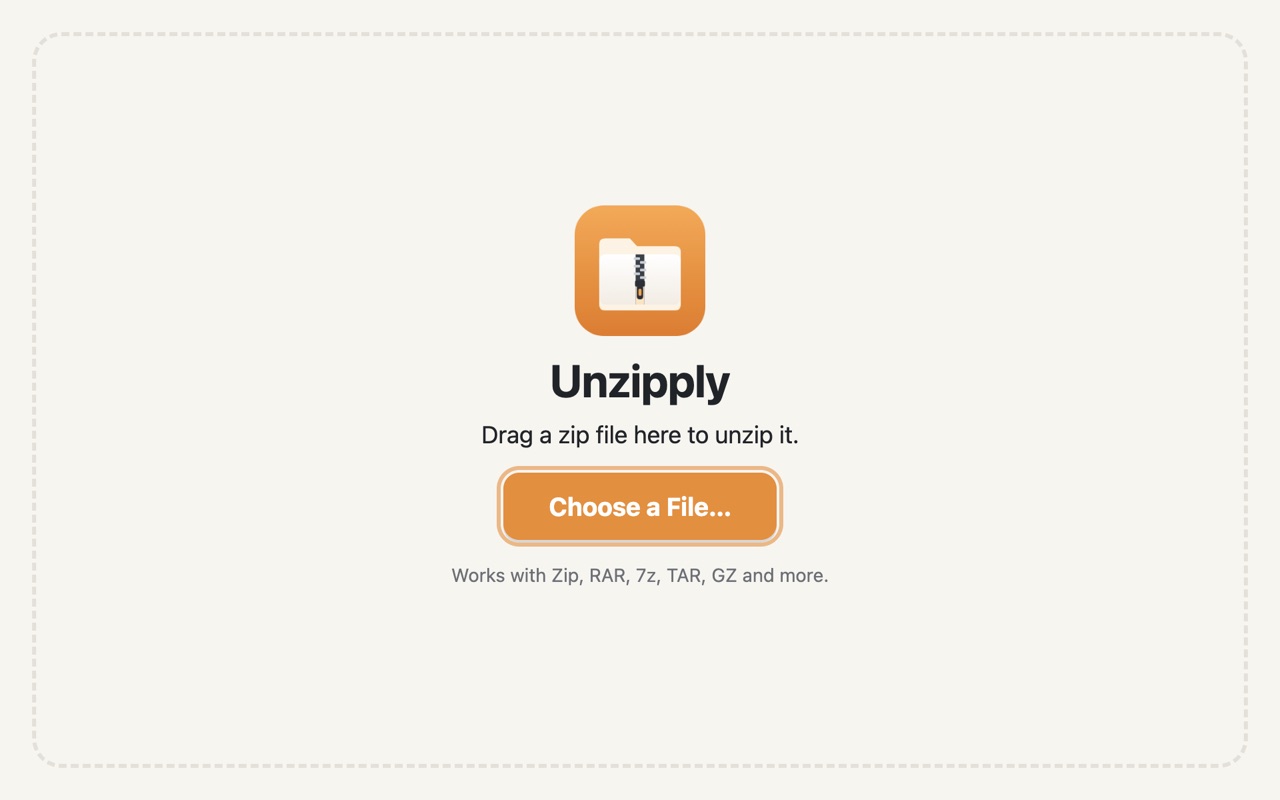
- Open Unzipply and drag your zip file into the window. Or click Choose a File.
- Look over the list of files inside.
- Click Unzip. To put the files somewhere else, click Change first.
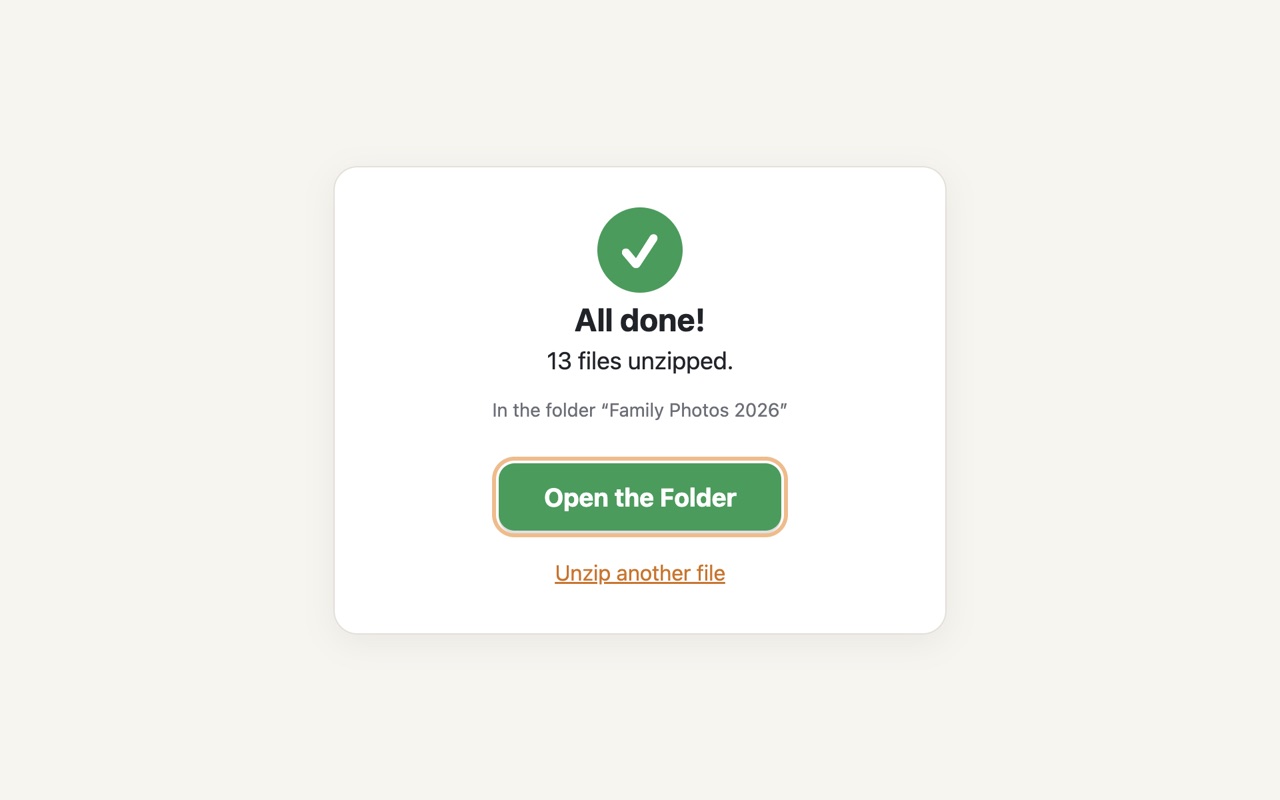
- Click Open the Folder to see your files.
Once Unzipply is installed, you can also double-click a RAR or 7z file to open it in Unzipply. For zip files, right-click the file and choose Open with › Unzipply.
Installing on Windows
Open Unzipply-Setup.exe. If Windows says "Windows protected your PC", choose More info, then Run anyway. Pick where to install it, and Unzipply adds Start menu and Desktop shortcuts. To remove it later, use Apps & features.
Installing on Mac
Open Unzipply.dmg and drag Unzipply onto Applications. The first time you open it, macOS may say it can't check the app. Choose Done, then open System Settings › Privacy & Security, scroll down and choose Open Anyway.
Files it opens
Zip, RAR (including split .part1.rar files), 7z, TAR, GZ and TGZ, BZ2, XZ, ISO, CAB, and most other compressed files. Unzipply uses the 7-Zip engine.