 FastFreeSoftware
Spreadsheets
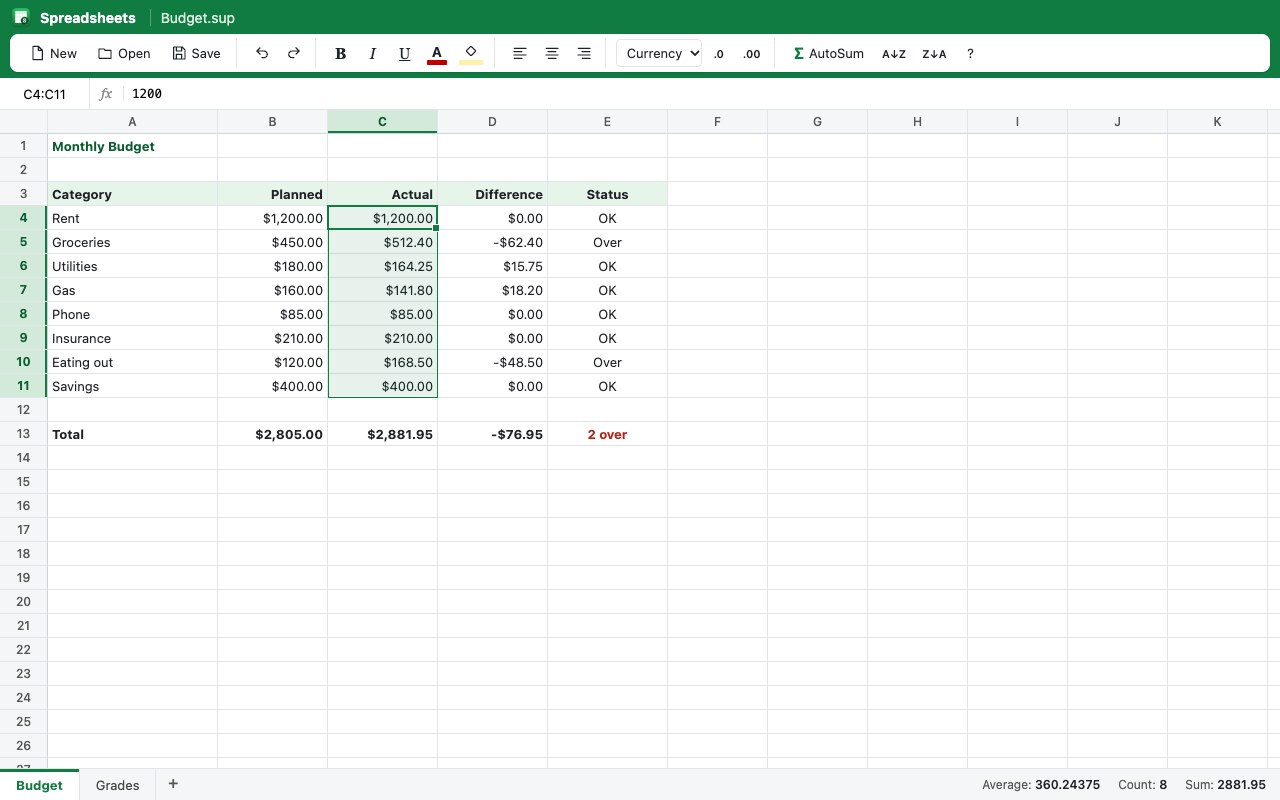
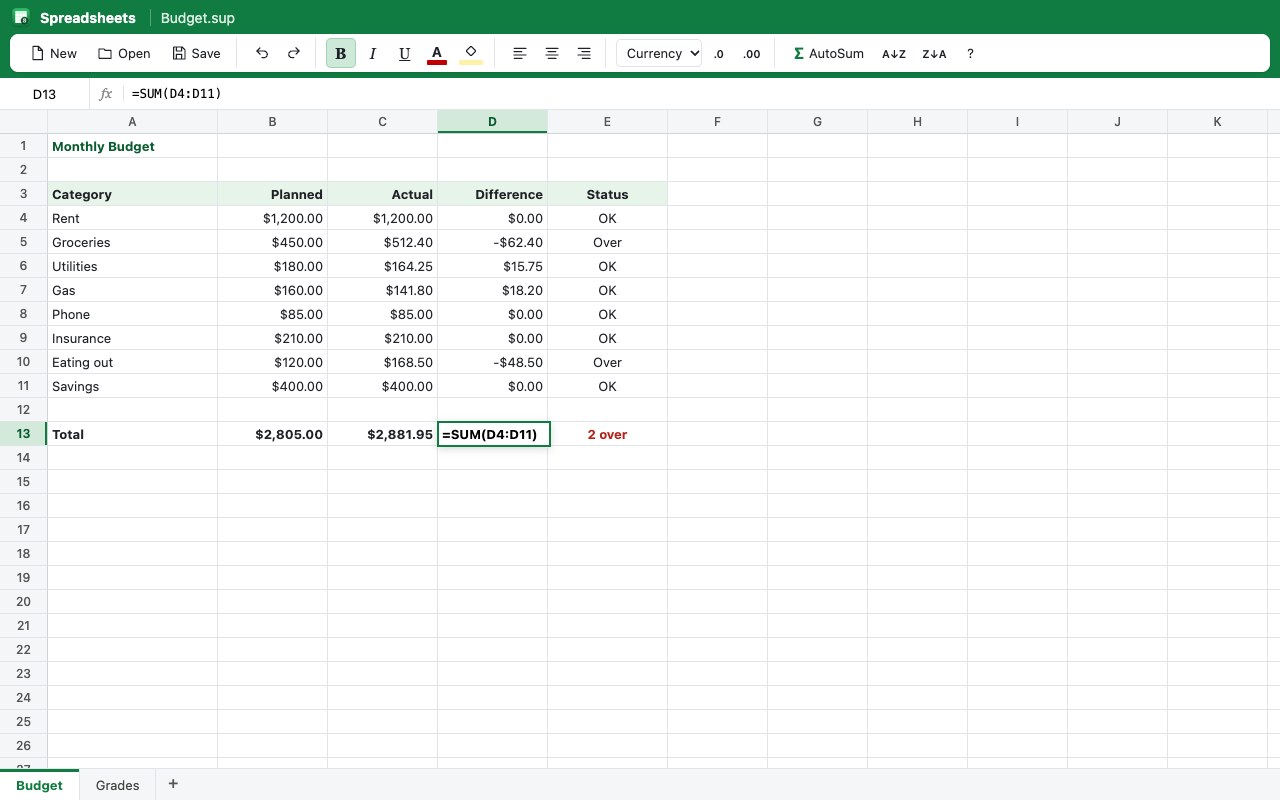
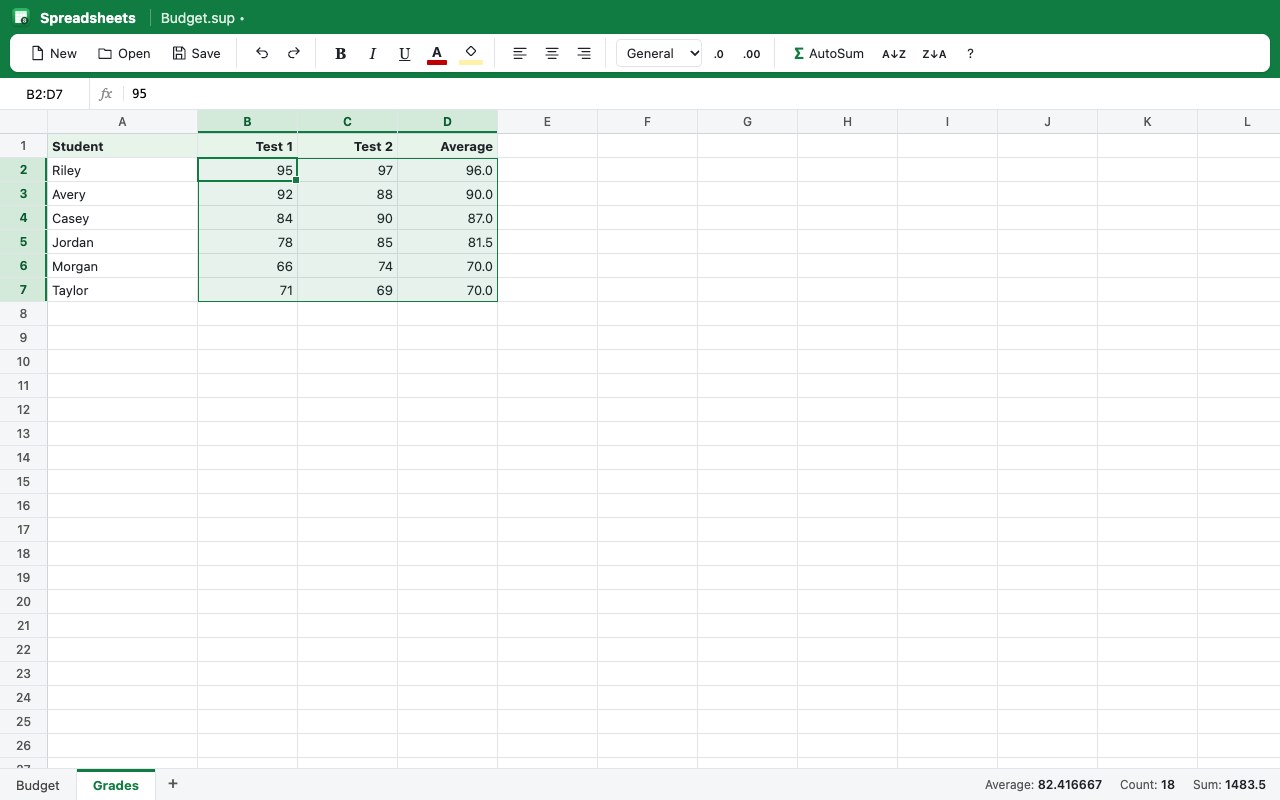
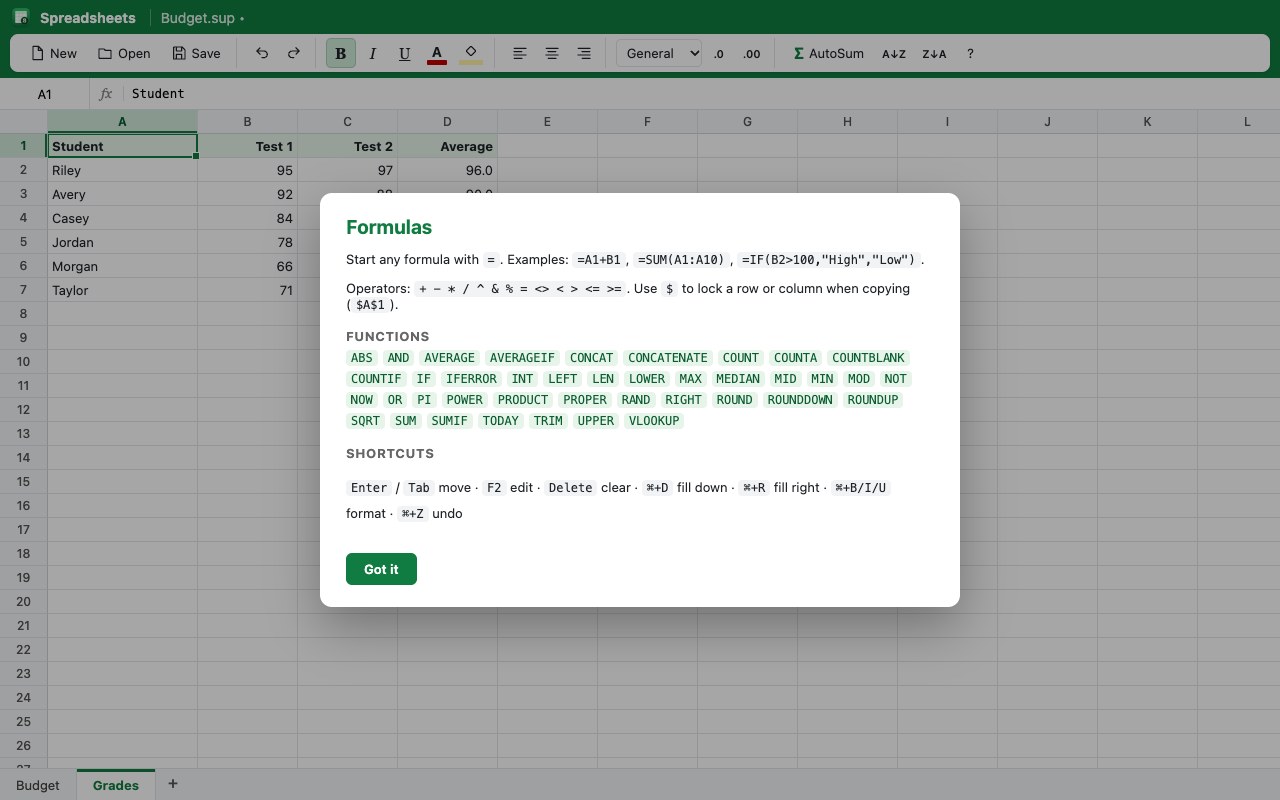
Spreadsheets is a simple spreadsheet for Windows and Mac. It works like the spreadsheets you already know, with only the parts you actually use: rows and columns, sheet tabs, a formula bar, and 40 formulas including SUM, AVERAGE, IF, VLOOKUP, SUMIF and COUNTIF. Make cells bold, colored or filled, show money, percents and dates, sort with one click, and add up a column with AutoSum. Select some cells and Spreadsheets shows their total right away. Copy and paste to and from Excel or Google Sheets, and open or save CSV files.
Version 1.0.0
What's New
- First release
- 40 formulas, AutoSum, sorting, fill down and fill right
- Bold, italic, colors, fill, alignment, money, percent and date formats
- Multiple sheets, insert and delete rows and columns, undo and find
- Opens and saves Spreadsheets workbooks (.sup) and CSV files
Installing on Windows
Open Spreadsheets-Setup.exe. If Windows says "Windows protected your PC", choose More info, then Run anyway. Pick where to install it, and Spreadsheets adds Start menu and Desktop shortcuts. To remove it later, use Apps & features. Your spreadsheets stay where you saved them.
Installing on Mac
Open Spreadsheets.dmg and drag Spreadsheets onto Applications. The first time you open it, macOS may say it can't check the app. Choose Done, then open System Settings › Privacy & Security, scroll down and choose Open Anyway.
Keyboard shortcuts
| Edit a cell | F2, or just start typing |
| Move after typing | Enter (down), Tab (right) |
| Bold, italic, underline | Ctrl+B, Ctrl+I, Ctrl+U |
| Copy, cut, paste | Ctrl+C, Ctrl+X, Ctrl+V |
| Fill down, fill right | Ctrl+D, Ctrl+R |
| Undo, redo | Ctrl+Z, Ctrl+Y (Mac: ⌘⇧Z) |
| Find | Ctrl+F |
| AutoSum | Alt+= (Mac: ⌘⇧T) |
| Save | Ctrl+S |
Formulas
Start a formula with =, like =A1+B1 or =SUM(B4:B11). While typing a formula, click a cell to add it, or drag to add a range. Put $ in front of a column or row, like $A$1, to keep it fixed when you copy the formula.